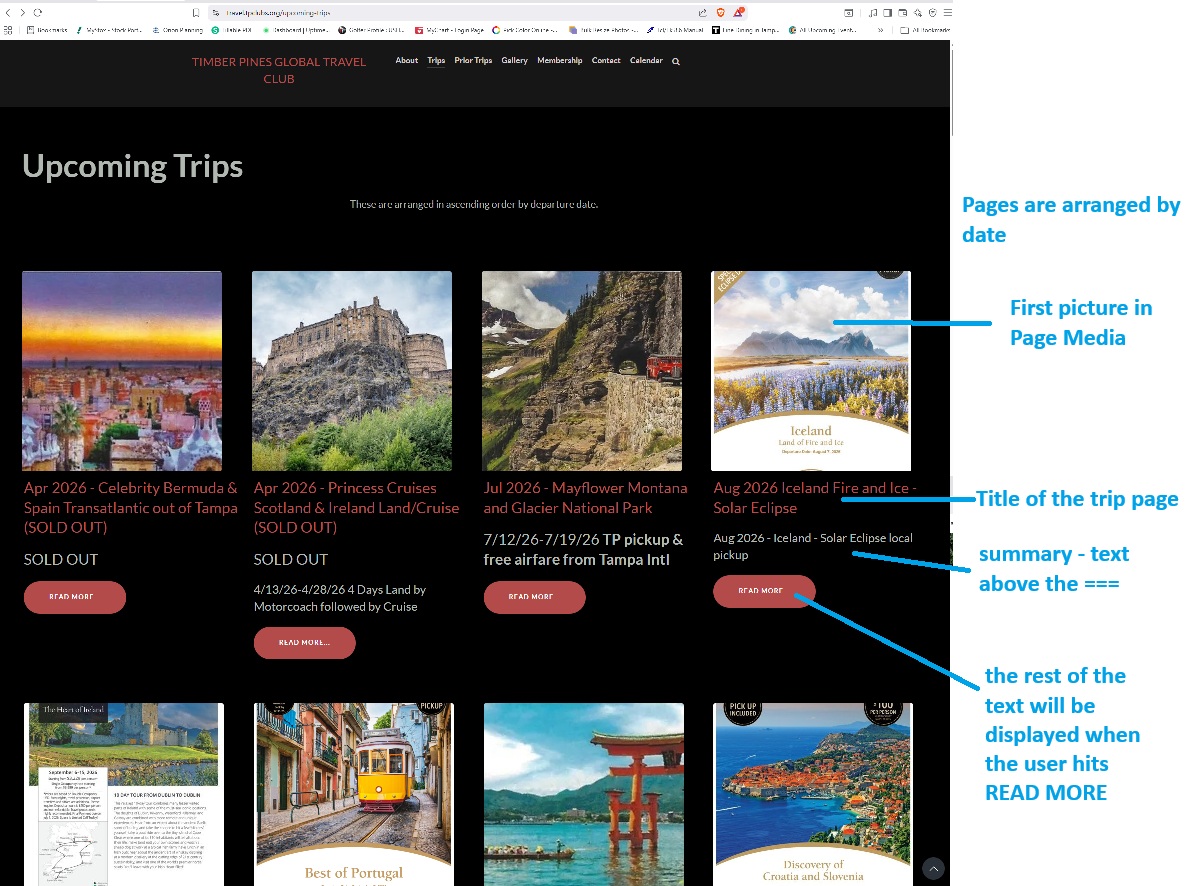
Add a trip Update
Get a copy of PDF24 and launch it
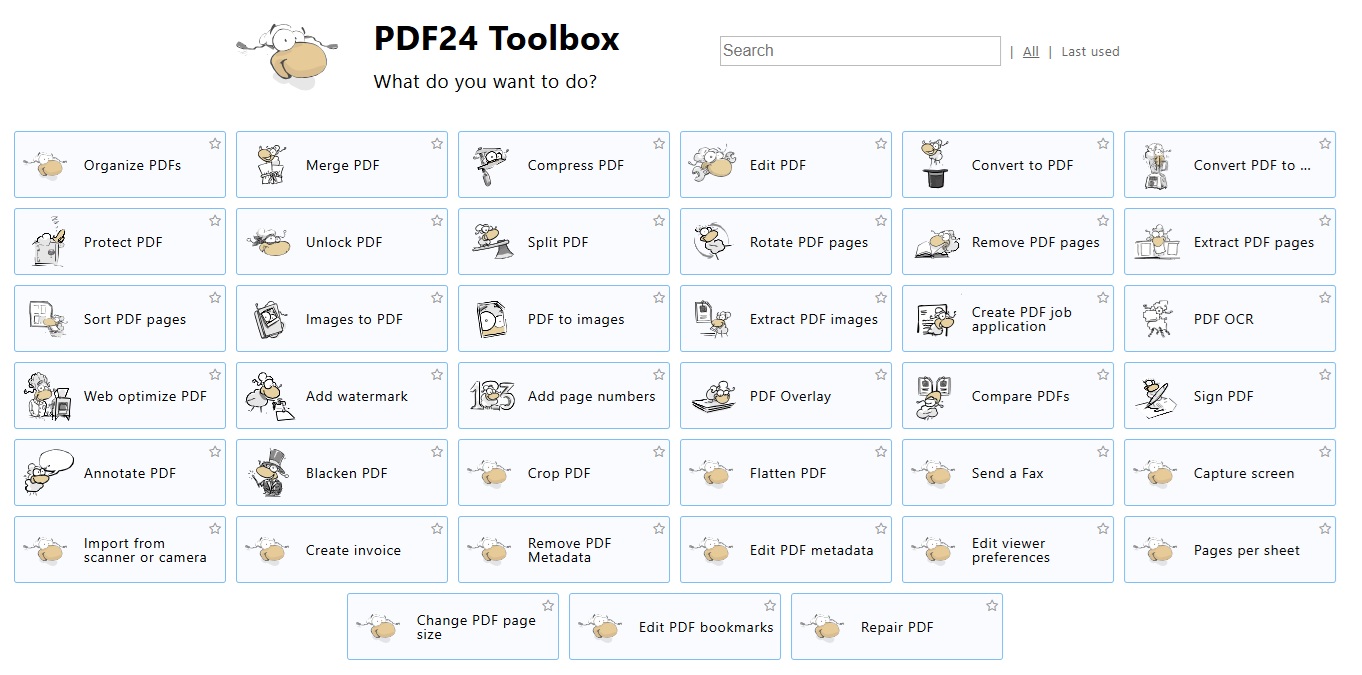
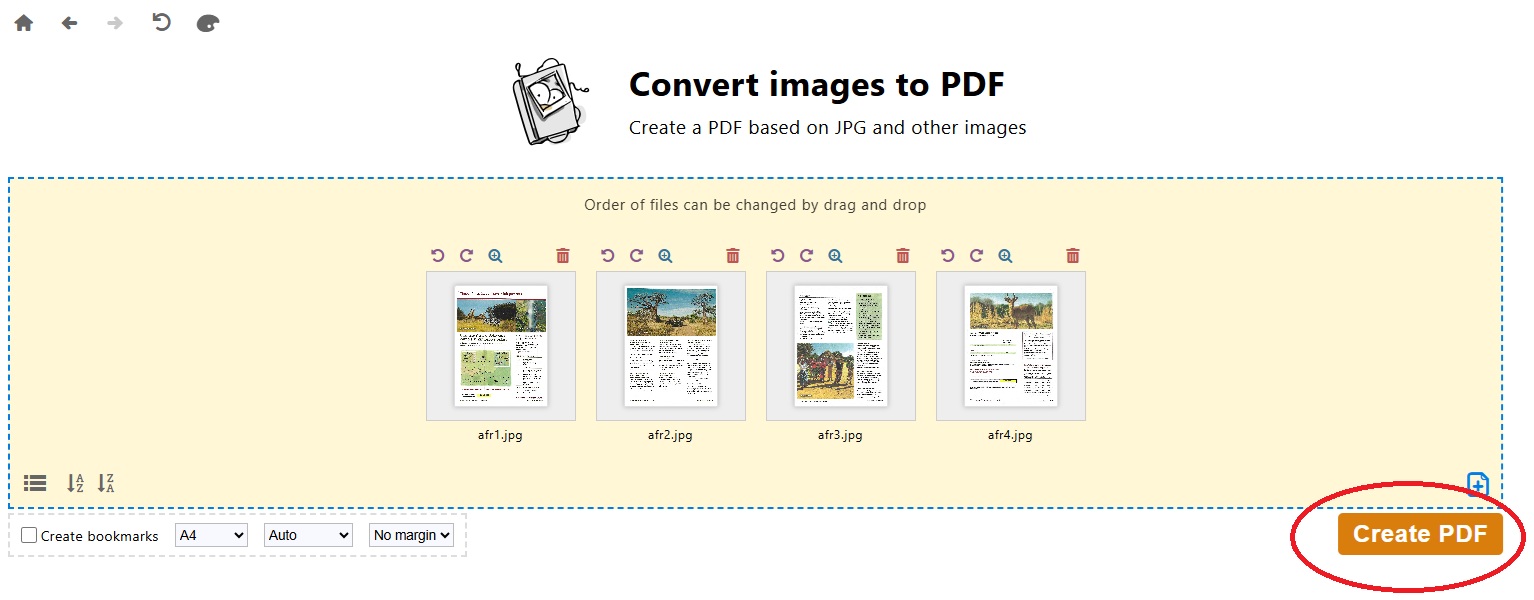
Convert Images to PDF
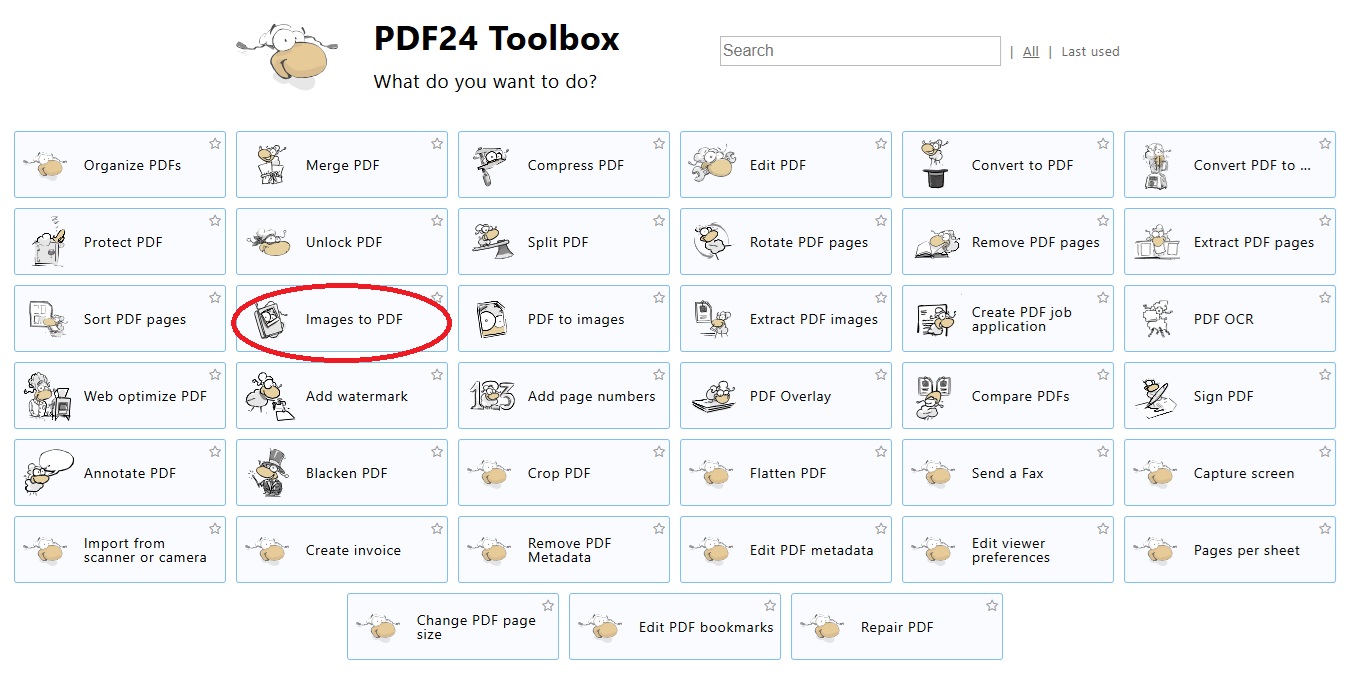
Drag your image files into this area
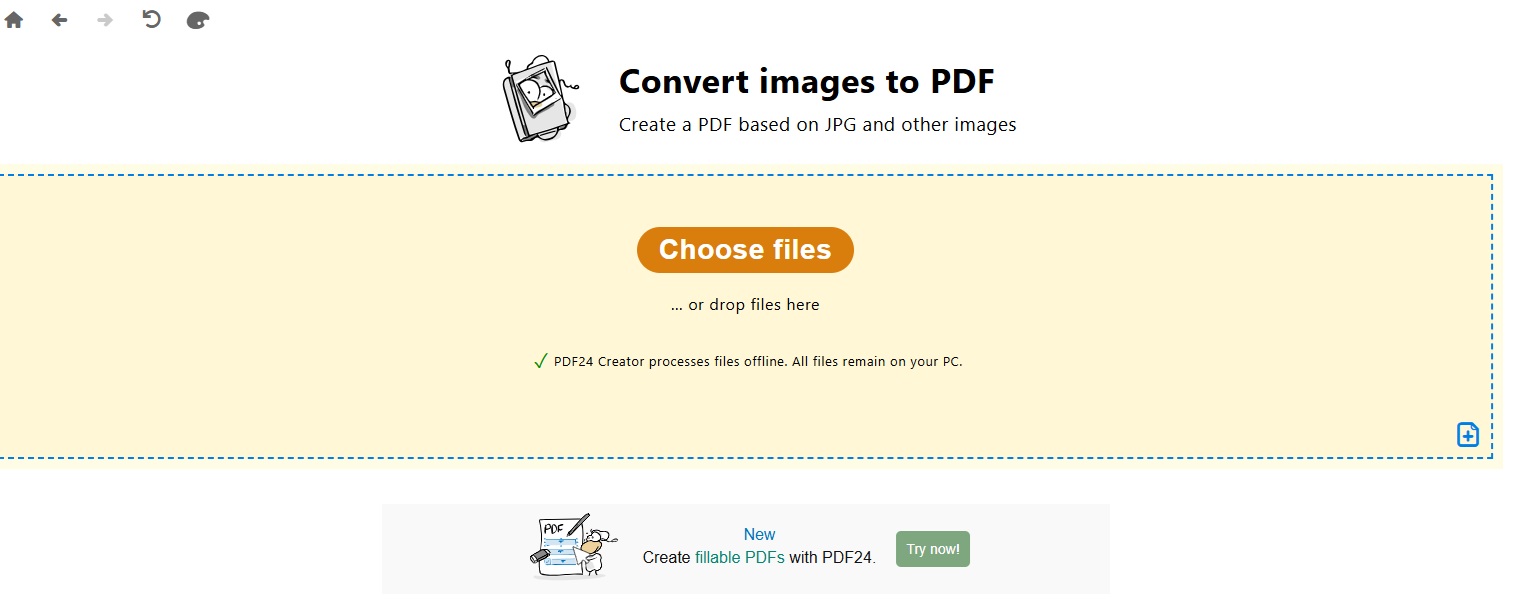
Make sure they are in the order you want -- you can drag them around
then Create the PDF
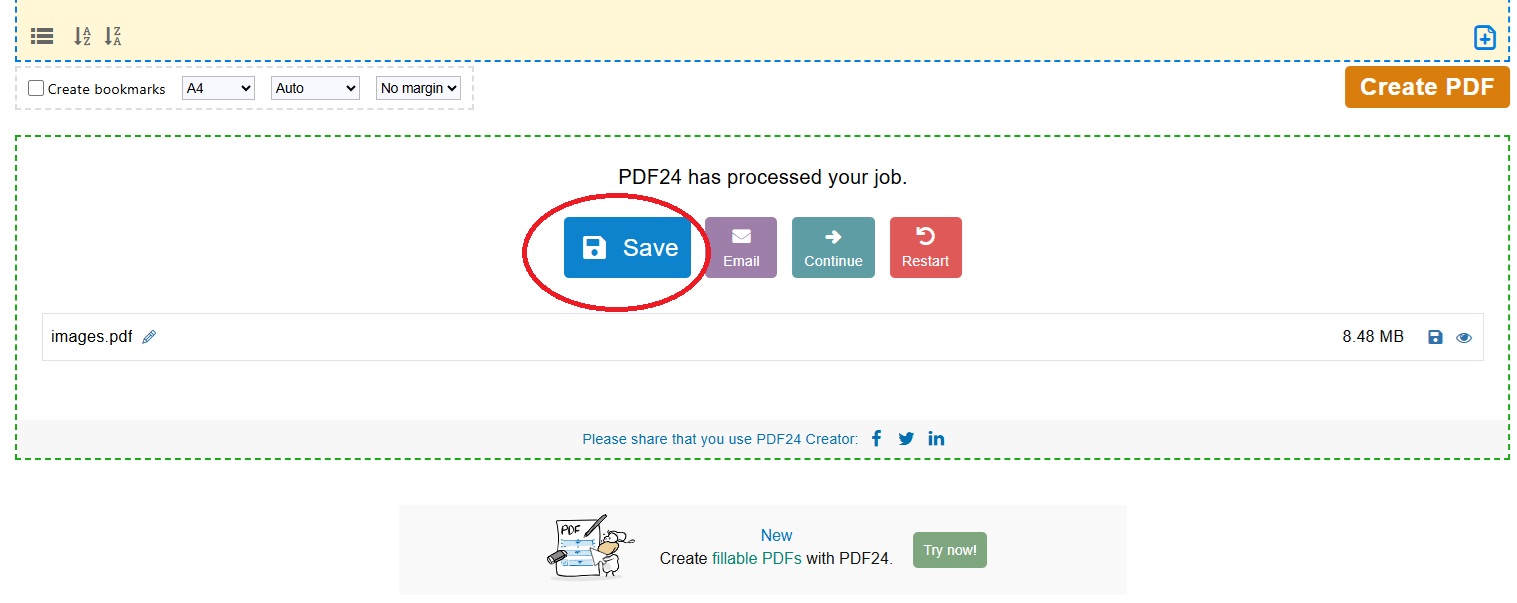
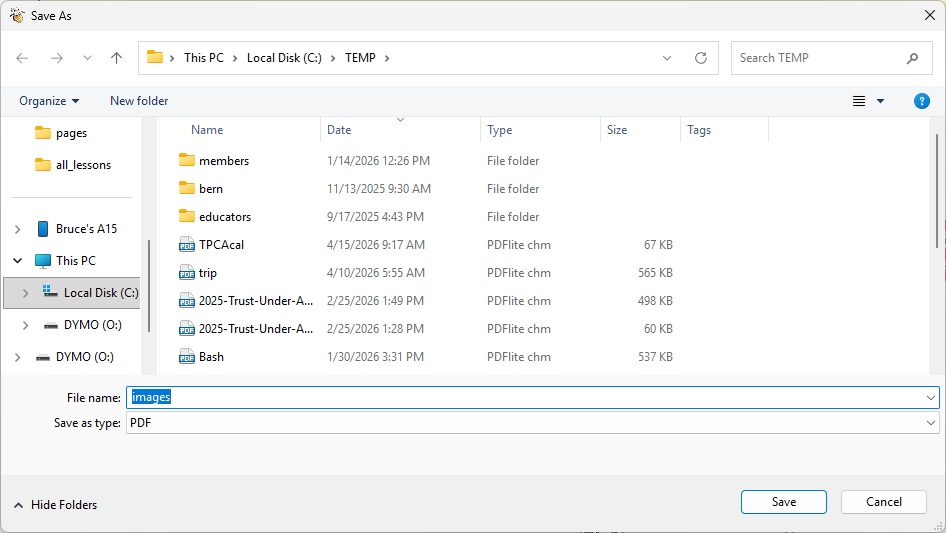
And save it -- call it trip.pdf
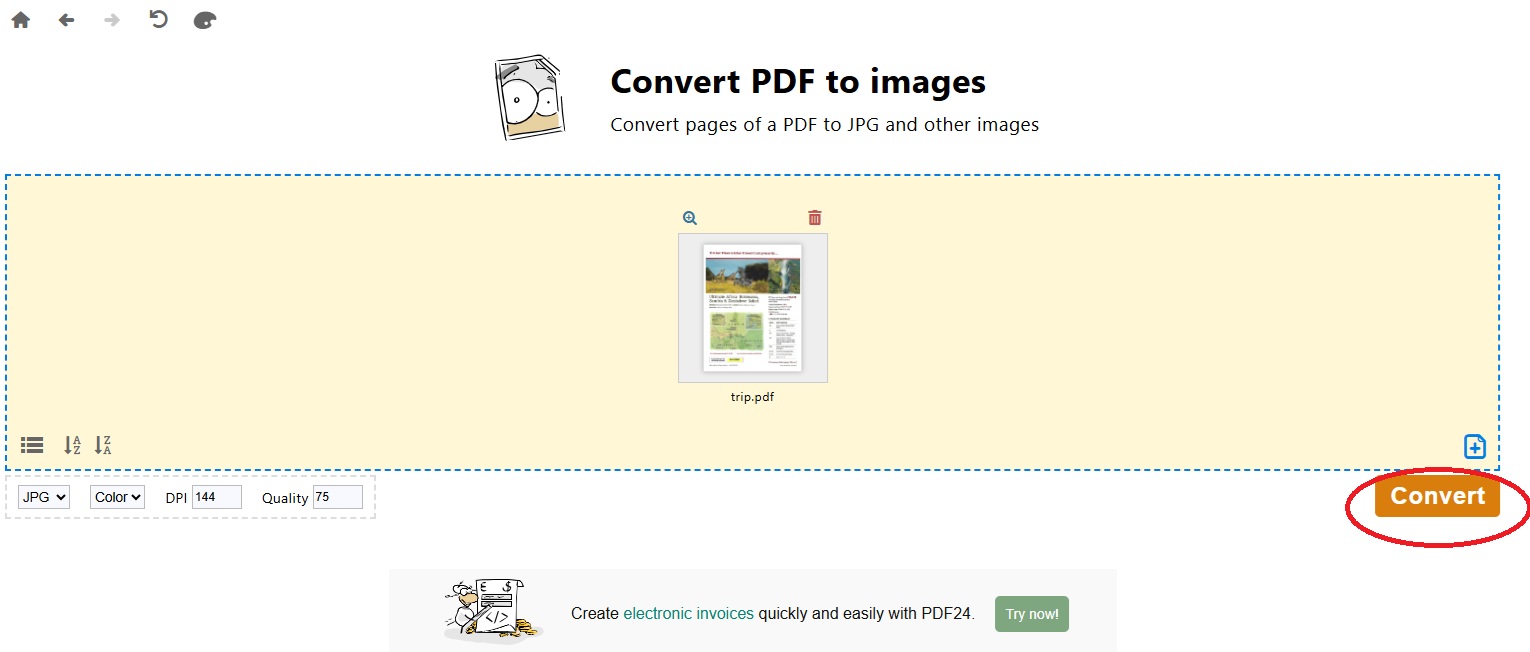
Convert PDF to images
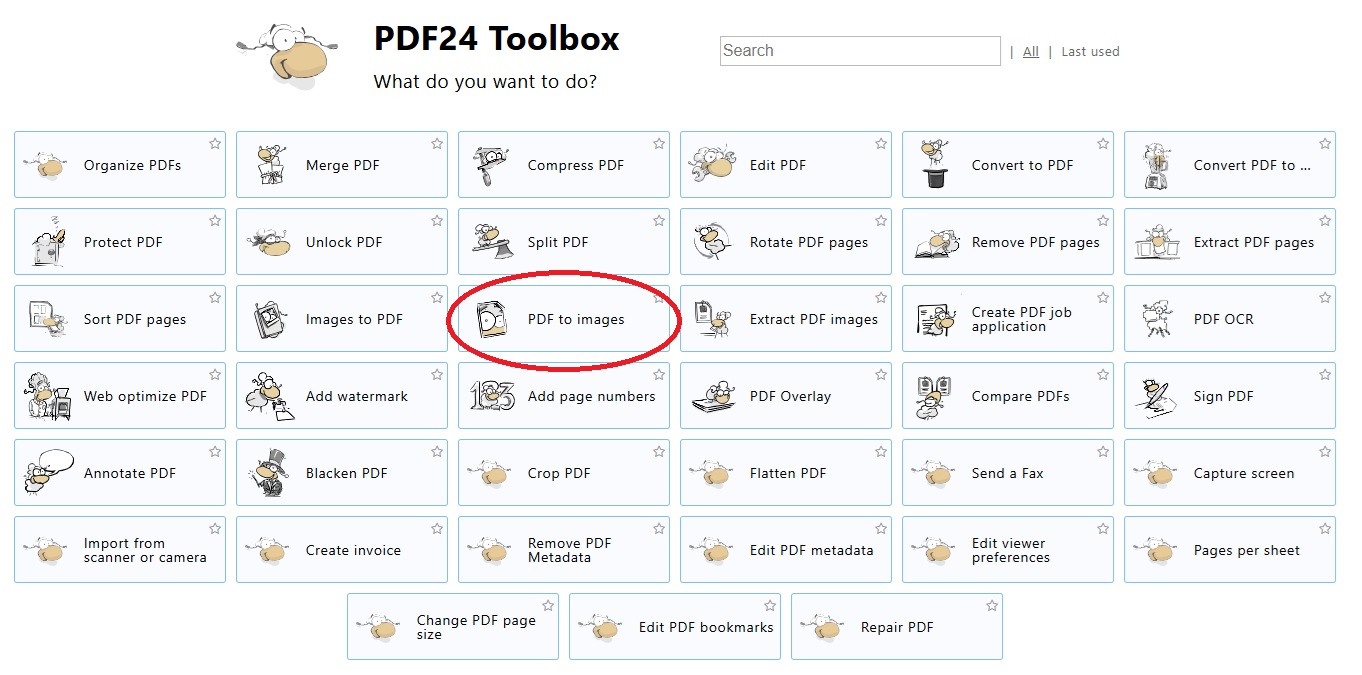
Drag your PDF into this area
Then convert it
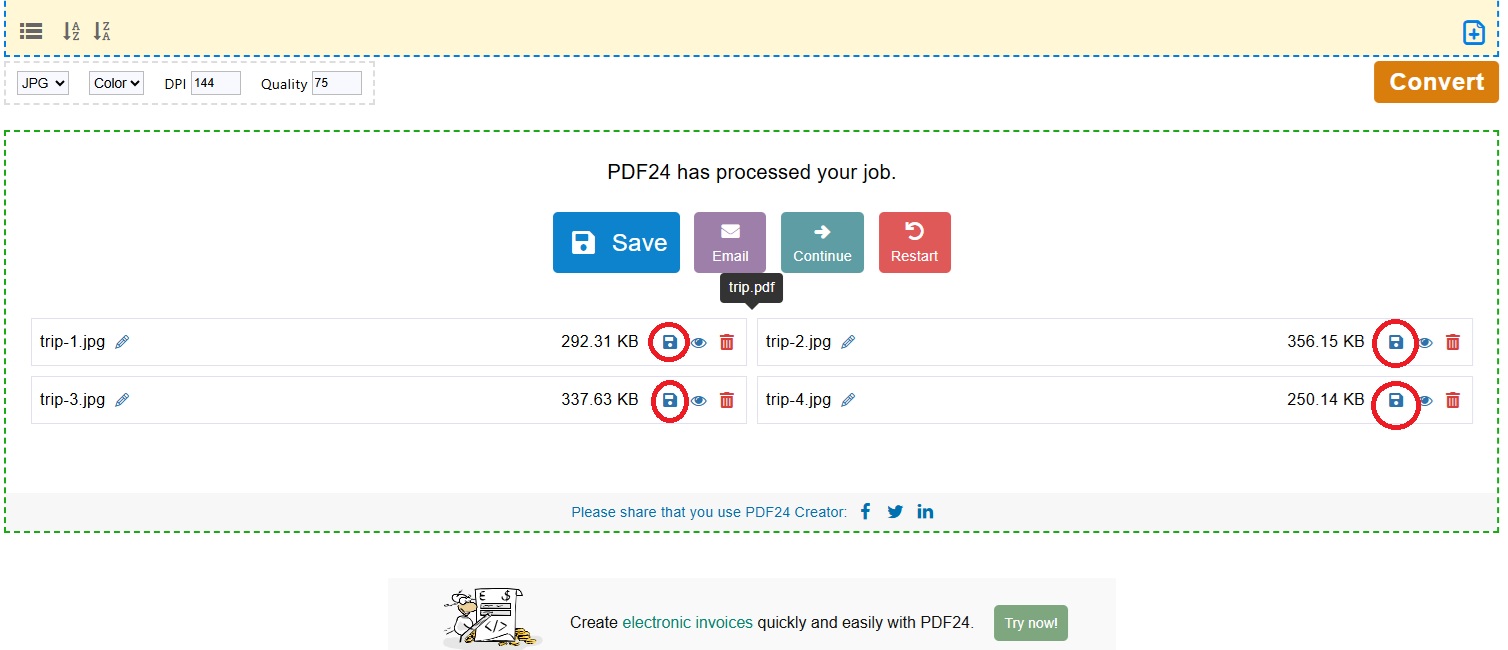
And save the individual image files -- DO NOT HAVE SPACES in the names -- this example created 4 images
Add the trip to the webpages
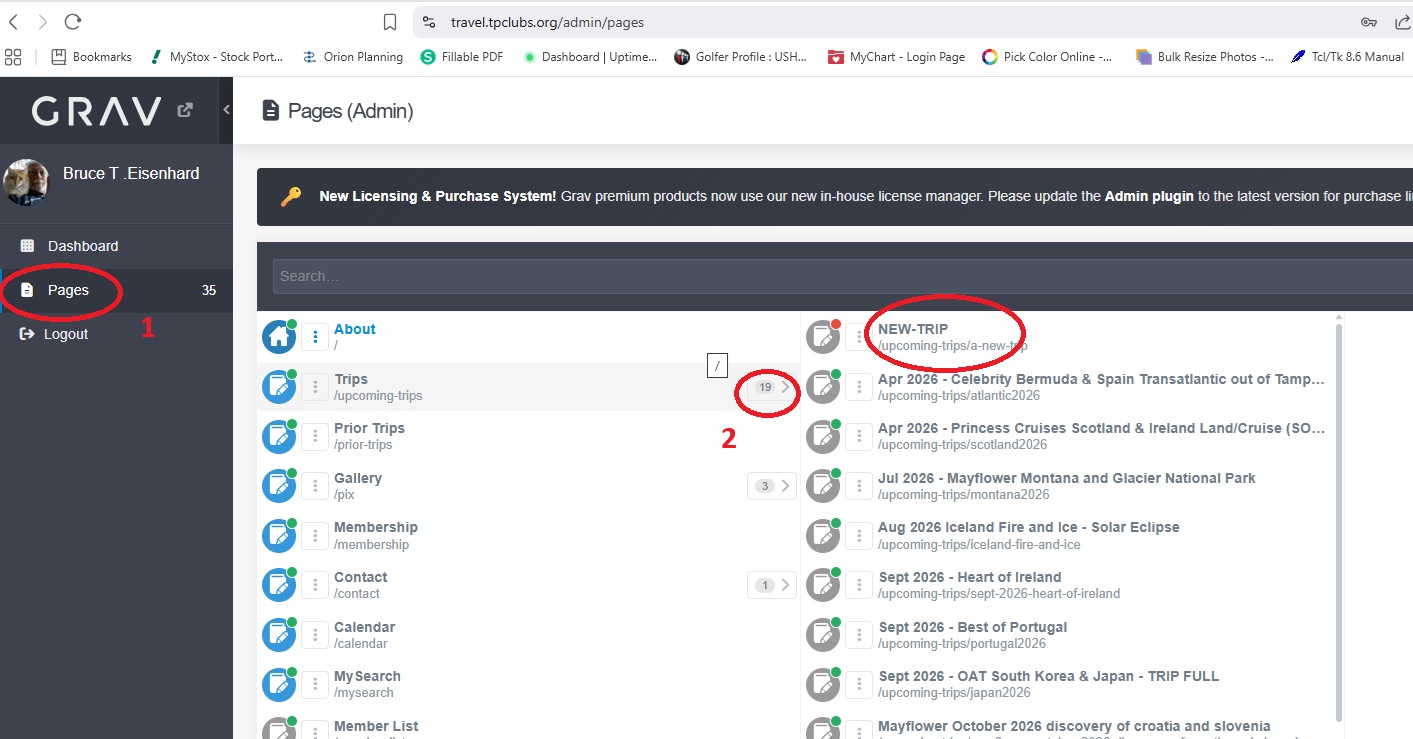
Now log into the travel admin page travel.tpclubs.org/admin

Select Pages, an the click on NEW-TRIP
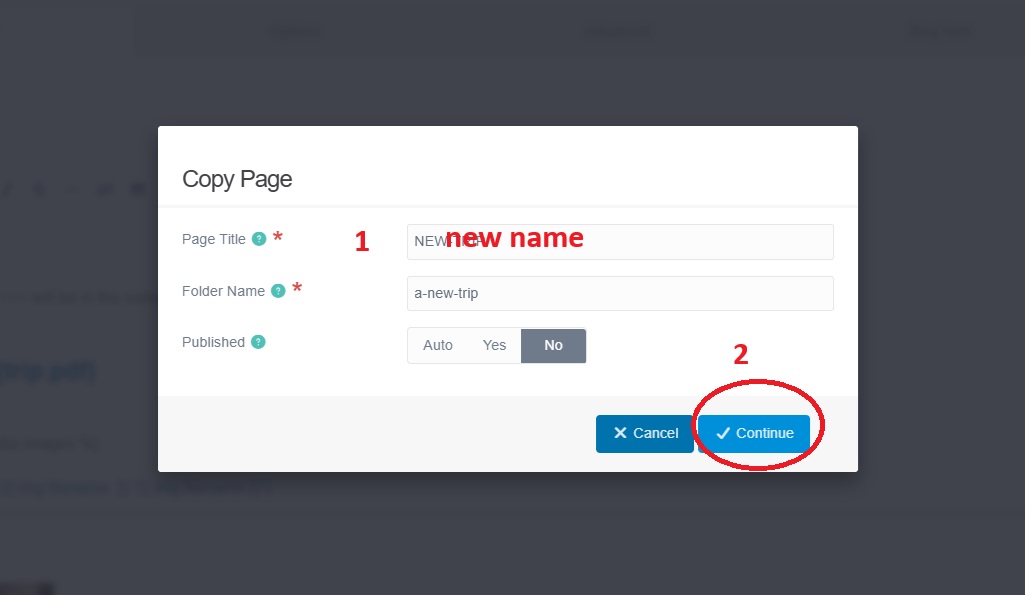
After it opens COPY the page
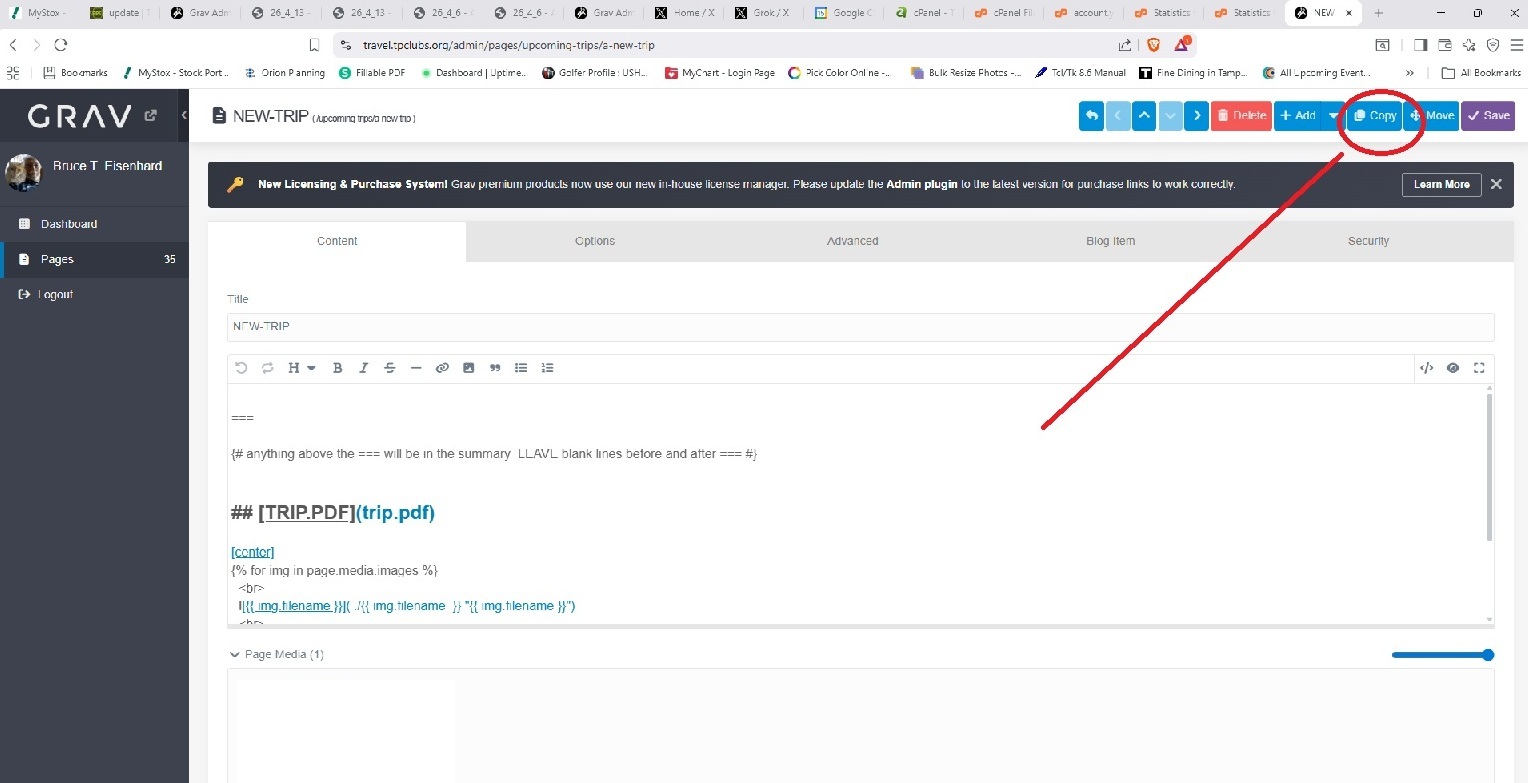
give the trip a name
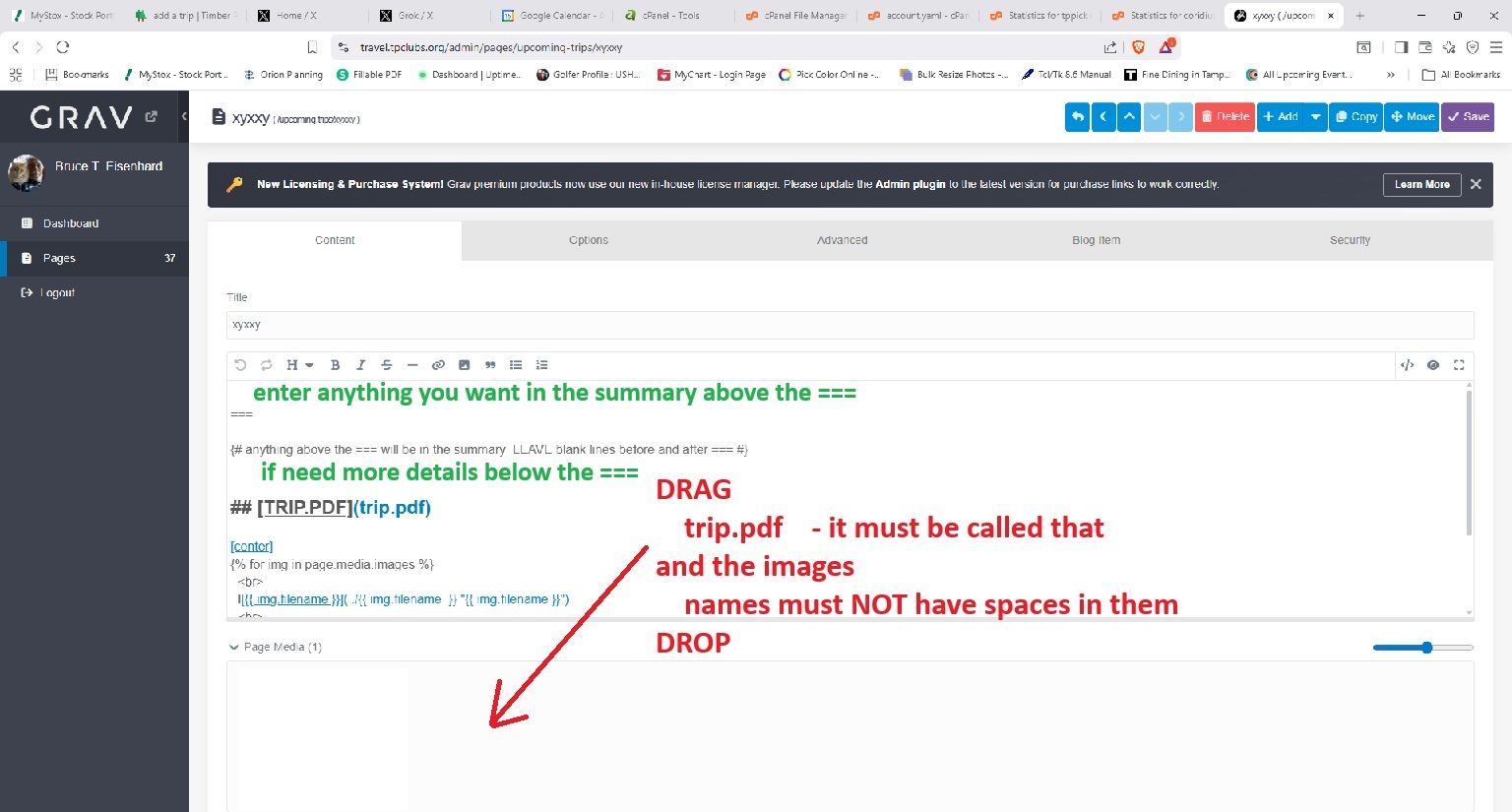
In the Content tab
Drag and drop the trip.pdf file and the image files into the Page media area -- NO SPACES in FILENAMEs
Optionally enter text above the == will appear in the summary
Optionally enter more text description below the ===
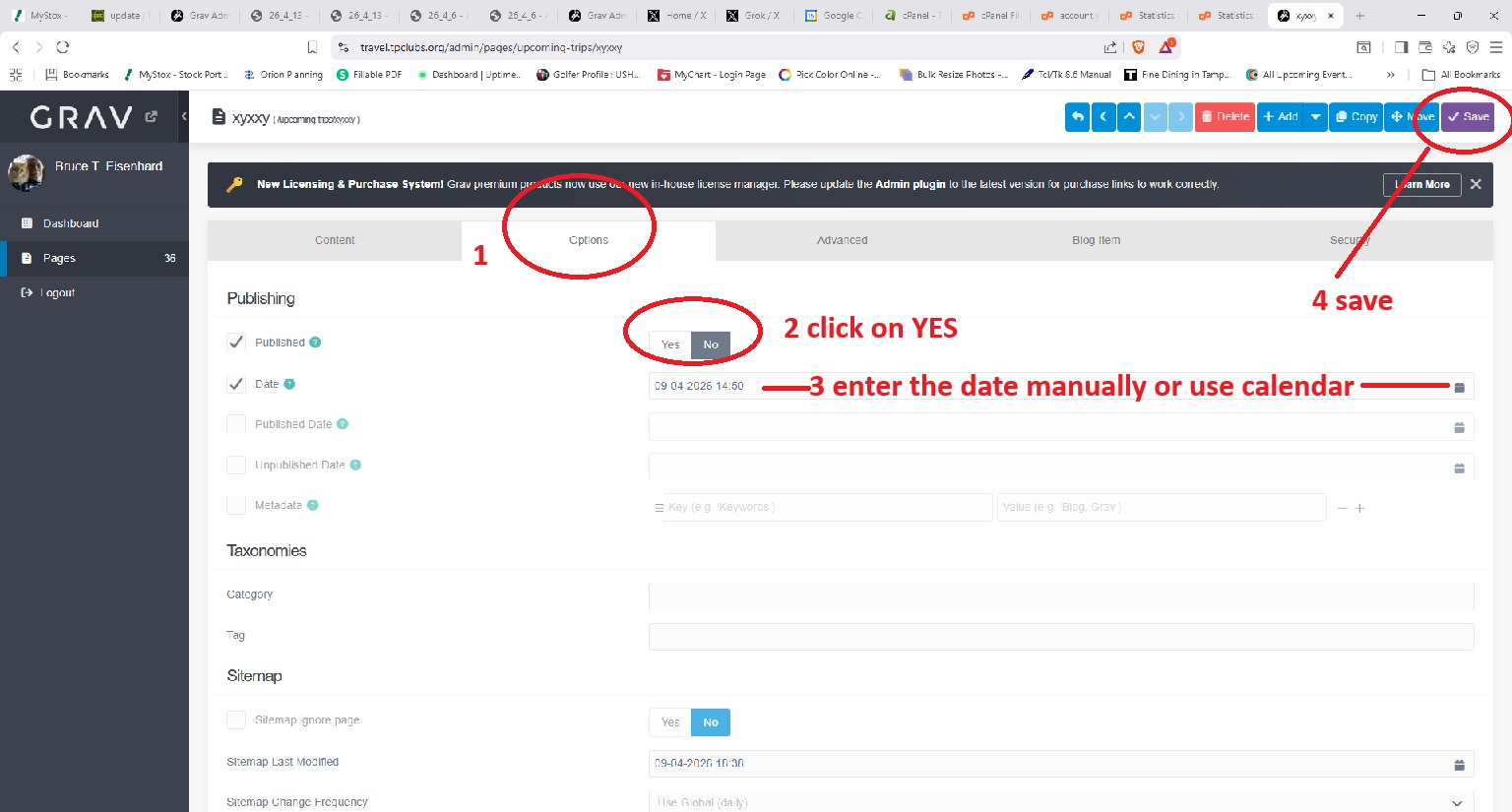
Then click on Options
Set Published to YES
Select the start date -- calendar on right easiest
and SAVE
You are done with the website, and below will be how the page appears
You should also update the Global Travel Club Google Calendar